


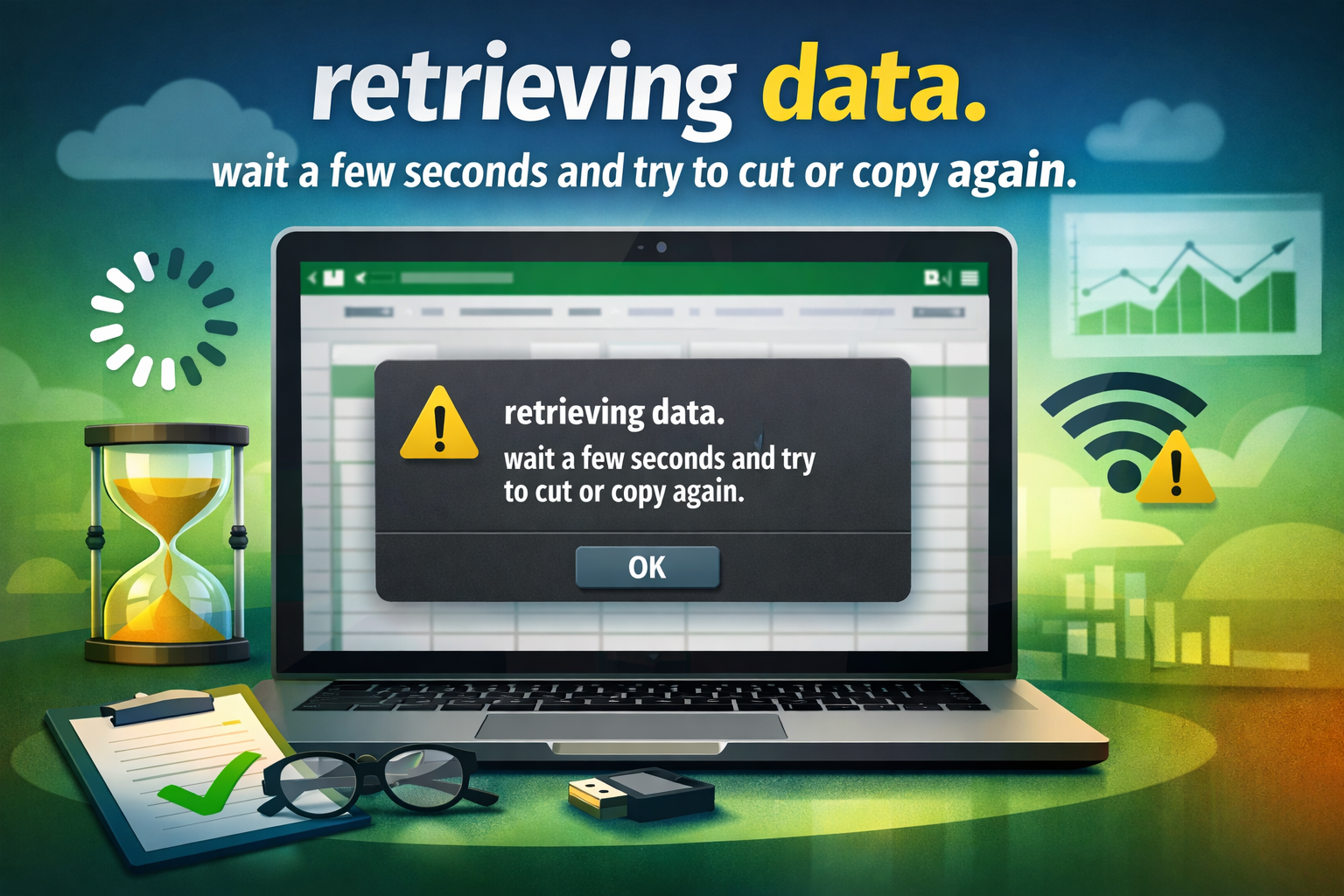
Have you ever been deep in a spreadsheet, selected important numbers, hit Ctrl+C to copy them, and instead of a smooth paste you get this message: “retrieving data. wait a few seconds and try to cut or copy again.”?
It feels like the file is mocking you right when you need speed the most. One moment you’re in flow, the next you’re stuck waiting, watching the same error pop up over and over. If you work with Excel Online, Microsoft 365, OneDrive, or SharePoint files, you’ve probably faced this exact headache.
I’ve been helping teams and individual professionals fix spreadsheet problems for years, and this particular error keeps coming up. In this guide, I’ll walk you through exactly why it happens, the quickest ways to fix it, and smart habits that stop it from ruining your day again. By the end, you’ll know how to handle it confidently and keep your work moving smoothly.
Why This Error Happens in Excel Online
Excel Online works differently from the desktop version. When you copy or cut cells, the web app doesn’t just grab the data from your computer. It has to check with Microsoft’s servers to make sure everything is synced correctly. This “retrieving data” step protects your file from mistakes, but it also creates delays.
The message “retrieving data. wait a few seconds and try to cut or copy again.” appears when that server check takes too long or fails. Common triggers include:
- Slow or unstable internet connection
- Large files with thousands of rows or complex formulas
- Multiple people editing the same file at once
- Browser cache or extension conflicts
- Microsoft 365 temporary service hiccups
The error isn’t usually a broken file. It’s the cloud version trying to stay safe while staying in sync. Understanding this makes the frustration easier to handle.
Real-Life Situations Where This Error Strikes
Picture this: It’s Monday morning. You’re updating the monthly sales report that your manager needs in 20 minutes. You copy a column of figures and suddenly “retrieving data. wait a few seconds and try to cut or copy again.” appears. Panic sets in.
Or maybe you’re a student pulling data for a group project. Every time you try to move numbers between sheets, the same message stops you. These moments turn simple tasks into stressful ones.
I once worked with a small business owner who lost almost an hour every week because of this error. Her inventory tracker lived in OneDrive and she copied data between tabs constantly. After we fixed her setup, she saved time and reduced her stress.
Quick Fixes You Can Try Right Now
When “retrieving data. wait a few seconds and try to cut or copy again.” appears, don’t just keep clicking. Try these steps in order:
- Pause and deselect Click any empty cell to deselect your range. Wait 10–15 seconds. Then select the data again and try copying.
- Refresh the page properly Press Ctrl + Shift + R (or Cmd + Shift + R on Mac) for a hard refresh. This clears temporary glitches without losing your work.
- Check your internet Open a new tab and load a fast site like Google. If it’s slow, switch to a better connection or turn off your VPN temporarily.
- Clear clipboard history On Windows, press Windows key + V and click “Clear all.” This removes any stuck data that might be causing the problem.
- Try a different browser If you’re using Edge, switch to Chrome (or vice versa). Sometimes one browser handles Excel Online better than another.
Most people solve the issue with the first two or three steps. Give yourself a full minute before trying again.
Long-Term Solutions to Prevent the Error
Fixing the problem once is good, but preventing it is better. Here are proven strategies:
Work smarter with file size Large files cause more sync delays. Try these tips:
- Split big workbooks into smaller, linked files
- Remove unnecessary formatting and unused columns
- Convert data ranges into proper Excel Tables
- Use filters instead of hiding rows
Choose the right tool for the job For heavy editing, download a copy and use desktop Excel. Go to File → Save As → Download a Copy. Do your major copy-paste work locally, then upload the updated file. This simple habit cuts the error almost completely.
Keep your browser healthy
- Clear cache once a week
- Disable unnecessary extensions while working on spreadsheets
- Keep your browser updated
- Use Incognito mode for important shared files
Improve team collaboration habits When multiple people edit the same file:
- Communicate who is working on which section
- Use comments instead of constant cell changes
- Consider locking certain sheets during busy periods
Advanced Tips for Power Users

If you work with Excel daily, these extra techniques help even more:
- Use Power Query to pull data automatically instead of manual copy-paste
- Create named ranges for frequently copied sections
- Turn off automatic calculation (Formulas → Calculation Options → Manual) during big edits
- Save a version history backup before major changes
For finance teams or analysts handling huge datasets, moving repetitive tasks to Power Automate flows can eliminate manual copying entirely.
When to Get Extra Help
If the error “retrieving data. wait a few seconds and try to cut or copy again.” keeps coming back despite trying everything, it might point to a deeper issue.
You can check the current status of Microsoft 365 services directly here. This official dashboard shows if there are any ongoing problems with Excel Online, OneDrive, or SharePoint that could be causing the error.
You can also sign out of your Microsoft account completely and sign back in. Still stuck? Take clear screenshots of the error and your file size, then contact Microsoft Support through the Help menu inside Excel Online.
Common Mistakes to Avoid
- Repeatedly pressing Ctrl+C without waiting (this makes it worse)
- Ignoring slow internet and hoping it improves
- Keeping dozens of browser tabs open while working
- Using very old versions of browsers
- Working on huge files without splitting them
Avoiding these habits will dramatically reduce how often you see the error.
Making Peace with Cloud Spreadsheets
Excel Online is incredibly convenient. You can work from anywhere, collaborate in real time, and never worry about losing files. But that convenience comes with occasional hiccups like “retrieving data. wait a few seconds and try to cut or copy again.”
The good news? Once you understand why it happens and build better habits, it becomes a minor annoyance instead of a daily frustration. You’ll work faster, feel more in control, and spend less time fighting your tools.
Start small today. Try the quick fixes next time the error appears. Then pick one prevention tip—like downloading a local copy for big tasks—and make it a habit.
Your spreadsheets should help you get work done, not slow you down. With the right approach, they will.
Now it’s your turn: Next time you see that message, come back to this guide and try the steps. Let me know in the comments which fix worked best for you. And if you have a different Excel problem that’s driving you crazy, drop it below—I read every comment and love helping readers directly.
Here’s to smoother spreadsheets and fewer interruptions!
FAQs:
Q1: What causes “retrieving data. wait a few seconds and try to cut or copy again.” in Excel?
A: It happens when Excel Online can’t quickly sync your copied data with Microsoft’s servers due to slow internet, large files, or multiple users editing simultaneously.
Q2: Does this error mean my file is corrupted?
A: Usually no. It’s a temporary sync issue, not file corruption. Refreshing or working in desktop Excel often resolves it.
Q3: Why does it only happen in Excel Online and not desktop?
A: Desktop Excel works locally on your computer. The web version needs constant server communication for real-time collaboration.
Q4: How can I avoid this error when working with big spreadsheets?
A: Download a local copy for heavy editing, split large files, and use Excel Tables. Clear browser cache regularly too.
Q5: Is there a permanent fix for this Excel copy error?
A: No single permanent fix exists because it’s tied to cloud syncing, but combining the right habits and tools reduces it by 90% for most users.
You may also read newsprimeo.